Azure Devops Multiple Organizations by IC
Link Multiple Azure DevOps organizations with Zendesk
설치
5+
호환:
Support
개발자
Integratedcloud
About this app
Multiple Azure DevOps Organization integration app by IntegrateCloud is seamless integration between Zendesk and Multiple DevOps.
Azure DevOps integration app allows agents to create DevOps work items from Zendesk tickets easily to create Bug, Epic, Feature, User Story, and Product Backlog work items right from the app.
They can use this app to link existing work items and notify Azure DevOps work items. Using this app, you can also collaborate with your support team.
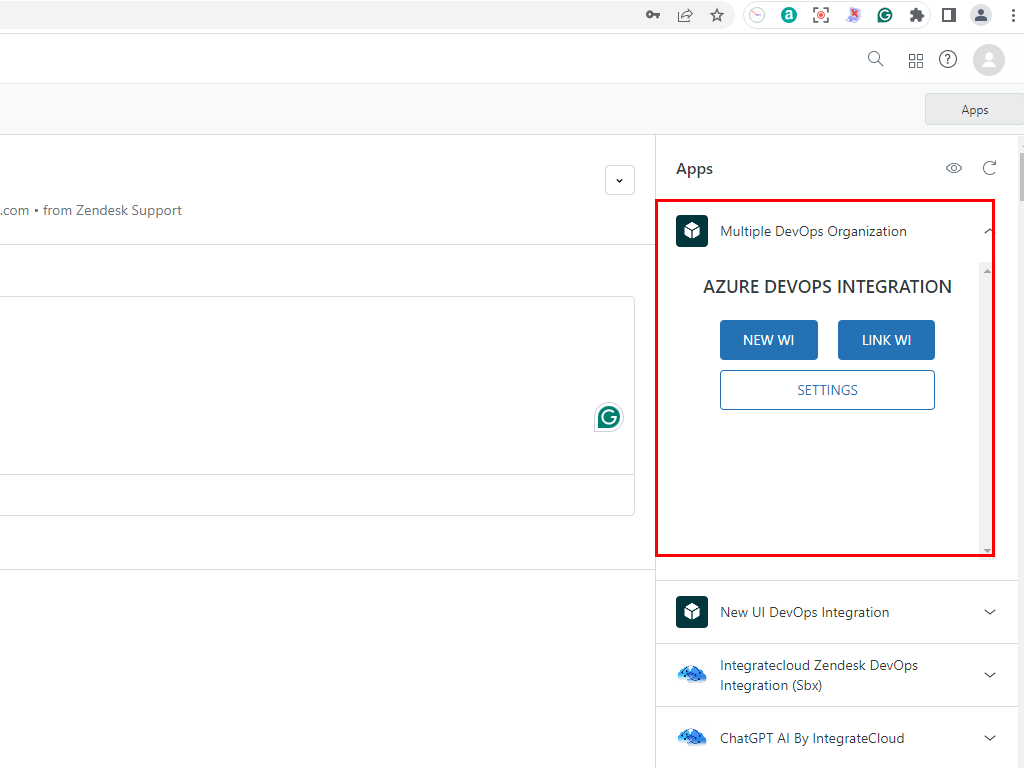
Zendesk Agents can search and link existing work items from Azure DevOps in the IntegrateCloud app itself.
Zendesk Azure DevOps app by IntegrateCloud also allows syncing of comments, status and other custom fields from Zendesk to Azure DevOps and from Azure DevOps to Zendesk. This will help you in increasing the productivity of your team.
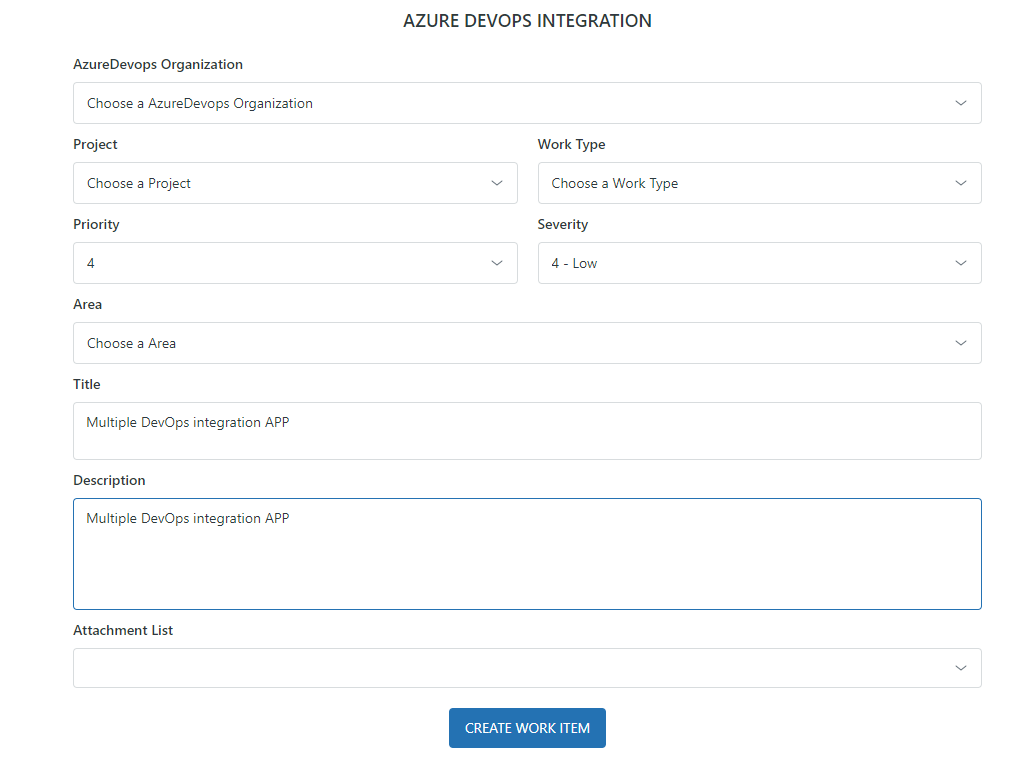
The Zendesk Azure DevOps app by IntegrateCloud is easy to setup and use. The Zendesk - Azure DevOps app provides a number of features like Create New Work Item, Link Existing Work Item, Notify linked work items, View History of Work Item, Search and link Work Item.
Create New Work Item:
The Create Work Item lets the Zendesk user create a new work item # in Azure DevOps platform. The Support Agent can select different types of fields like DevOps Organization, Project, WorkItem Type (like Bug, Feature, Epic, Task, Product Backlog, Issue, or any other Custom Work Item), Area, Iteration, Custom Fields, and Upload Fields. Based on Zendesk user inputs and selections in the Create new Work Item form, work item will be created instantly in Azure DevOps and created work item details will be displayed in the Azure DevOps integration app.
Link Existing Work Item:
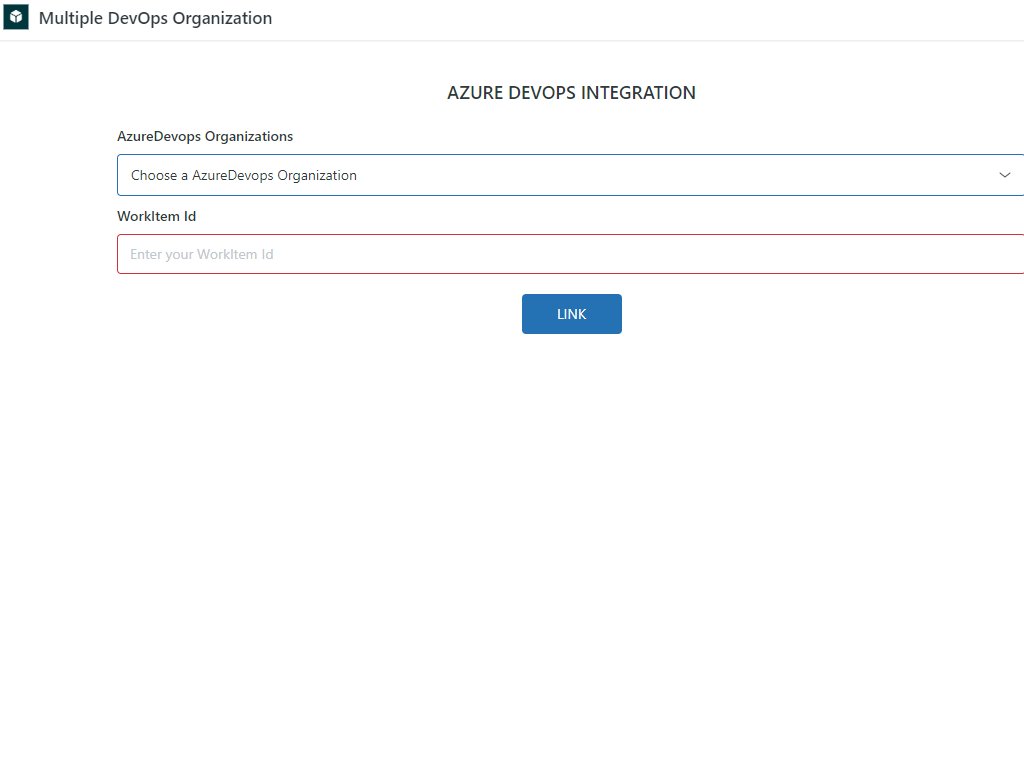
The Link button in the Zendesk-Azure DevOps app allows the support agent to link an existing Azure DevOps Workitem # to the current Zendesk ticket. Zendesk - Azure DevOps app allows the user to create or link multiple work items to one Zendesk ticket.
Notify linked Work Items:
Notify button in Zendesk - Azure DevOps app allows the support agent to notify all or particular Azure DevOps work items. The linked ticket information will be displayed in the comment in the Azure DevOps Work Item. The support agent can also send files from Zendesk to Azure DevOps while notifying.
Privacy & Data Processing Notice:
In compliance with Zendesk Developer Terms, this app handles data as follows:
- Data Accessed: The app accesses Zendesk ticket details (Ticket ID, subject, comments, attachments, custom field values) and Azure DevOps work item metadata (Organization, Project, Area, Iteration, Work Item fields).
- Data Used: Accessed data is strictly used to create/link Azure DevOps work items, synchronize comments/status/custom fields between systems, and facilitate notifications from Zendesk tickets.
- Data Stored: Authentication credentials (tokens and Personal Access Tokens) are encrypted and securely stored to maintain connectivity. Ticket data processed during synchronization is not permanently stored or shared with third parties.
- Privacy Policy: For more information regarding our data protection practices, please visit our Privacy Policy at https://integratecloud.com/Signup/PrivacyPolicy.aspx.
This Zendesk - Multiple Azure DevOps integration app is available with all Azure DevOps projects and limited support.
Advanced features like custom fields and comments syncing are not supported in this free edition and work item creation is limited to 250 work items per year.
For advanced features please visit our website at https://integratecloud.com
For any help related to setup, please visit our support website https://support.integratecloud.com/zendesk-azure-devops-connector
앱 세부 정보
설치 방법
Click Install button to install the app to your Zendesk instance.
Once the app is installed, go to any of your existing ticket or create a new ticket.
Click on the Apps link and you will see the DevOps Integration Azure DevOps App.
Click on Authenticate button to connect your Zendesk account via OAuth and authorize the app. Enter your Azure DevOps credentials, such as an Azure DevOps Personal Access Token (PAT) with access to all DevOps organizations, and click Validate. Once authorized and validated, you are ready to use the app.
리뷰 남기기
Zendesk 커뮤니티에 나의 경험을 공유해 보세요