Slack Escalations
Zendesk Slack integration for escalation management. Every ticket gets its own channel.
설치
Less than 5
호환:
Support
개발자
Taroo
About this app

When a ticket needs engineering or management attention, your team copies the link into a Slack DM. The fix gets buried in a thread. The ticket stays open.
Slack Escalations gives every ticket its own dedicated Slack channel — created in one click from the sidebar. Agents stay in Zendesk. Everyone else stays in Slack. Both sides see the same conversation, in real time.
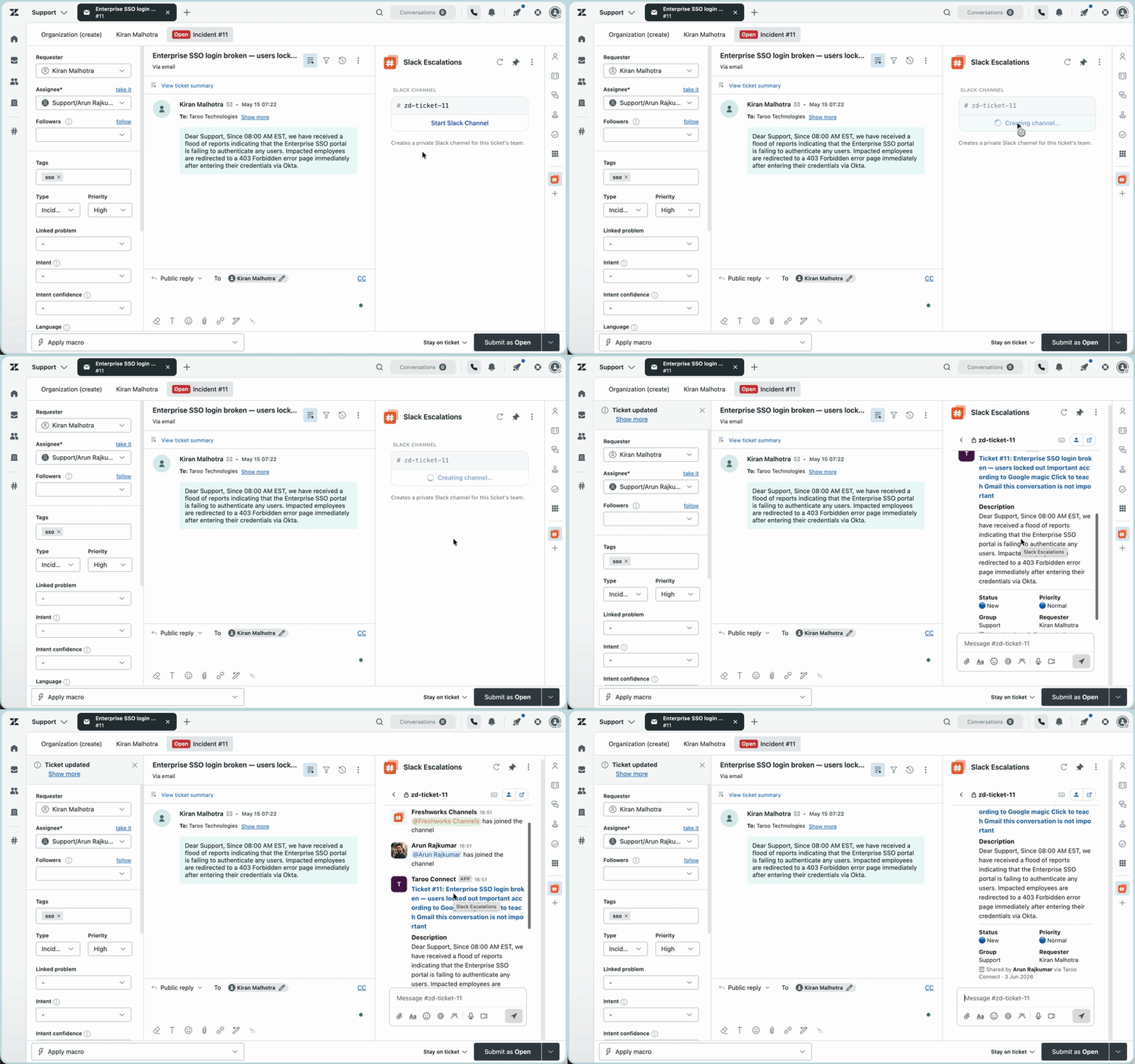
How It Works
- Connect Slack once — the admin authorises the app from the Preferences tab via OAuth.
- Choose your mode — Dedicated Channel per ticket, or Shared Escalation Channel with one thread per ticket.
- Escalate in one click — click Start Escalation from the sidebar. A channel or thread is created with full ticket context posted.
- Collaborate in real time — agents reply in Zendesk; collaborators reply in Slack. Both sides see the same conversation.
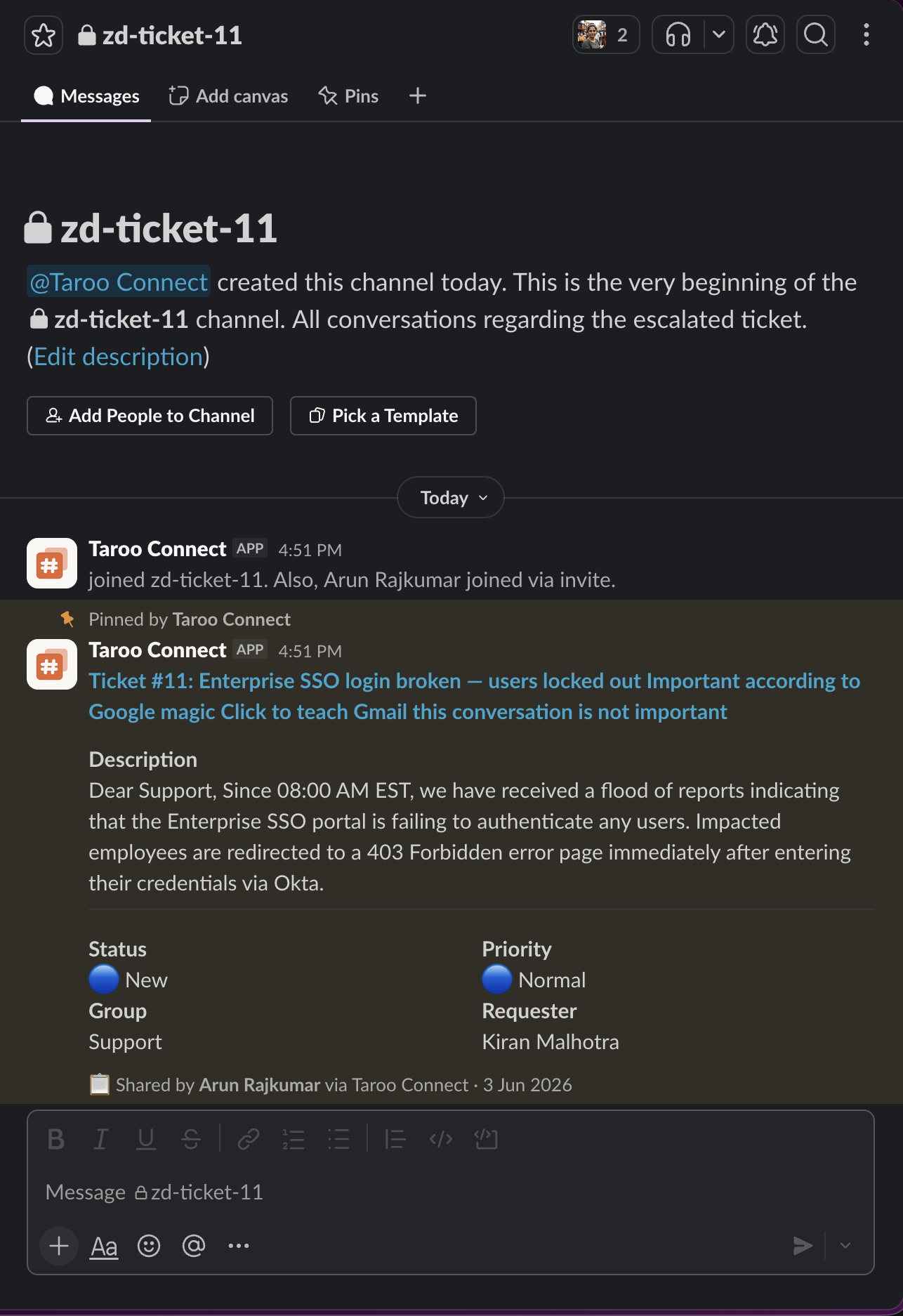
Key Features
- Two escalation modes — private channel per ticket, or shared channel with one thread per ticket
- Auto-swarm — Slack usergroups are automatically invited when a new channel is created
- Full in-sidebar chat — read, reply, react, attach files, record voice notes and video clips
- Smart routing rules — auto-route escalations by ticket tag, priority, or group
- Role-based access control — restrict who can escalate, join, link threads, or reply
- No Zendesk seat for collaborators — engineers and vendors join via Slack only
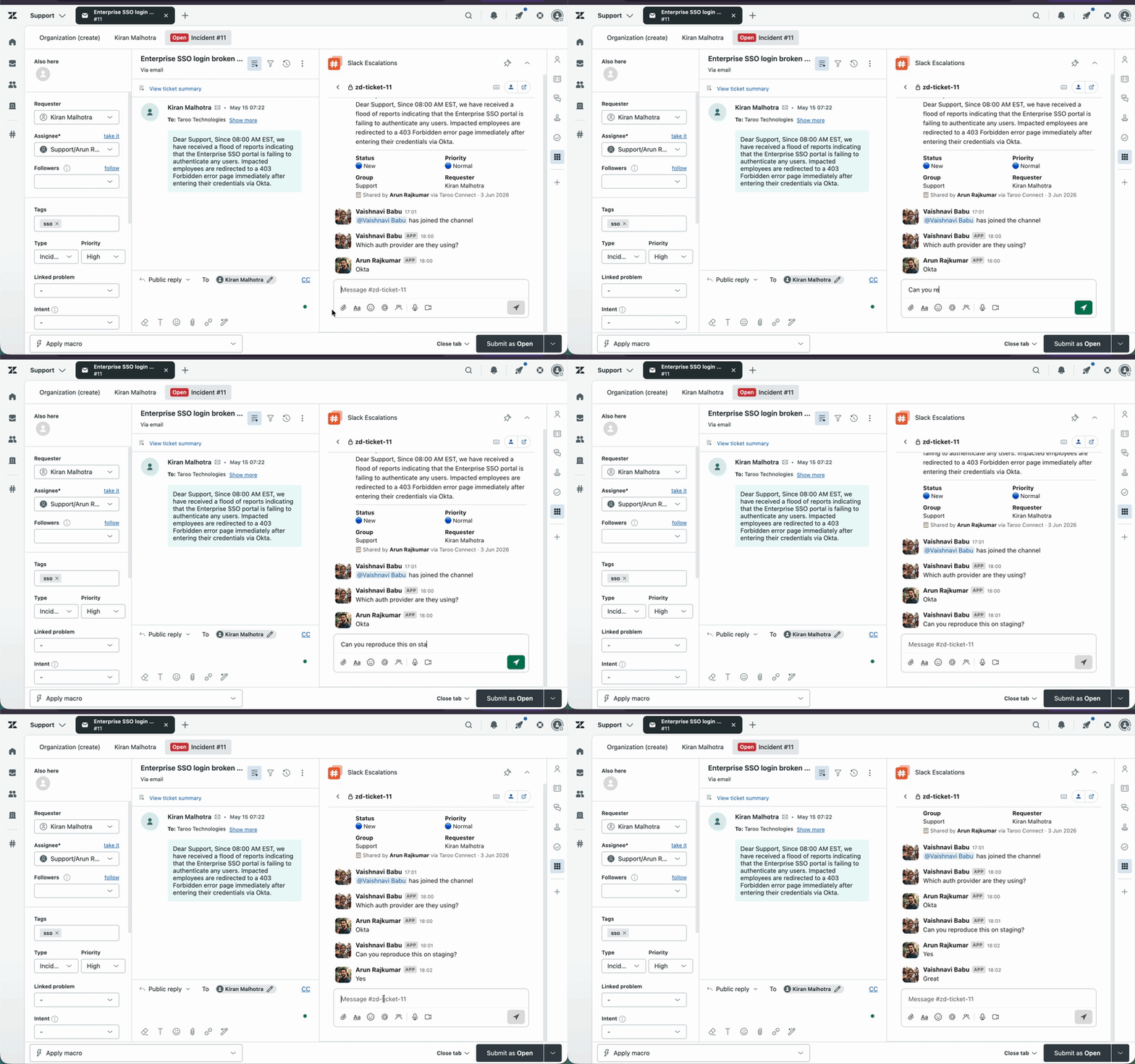
Who This Is For
Support teams using Zendesk and Slack for incidents, enterprise B2B cases, or any ticket that needs cross-team coordination to close.
Data & Privacy
This app transmits Zendesk ticket data to your Slack workspace via the Slack API to create escalation channels or threads and post the initial context message. No ticket content is stored by Taroo; all data stays within your Zendesk and Slack accounts, governed by your agreements with each platform. The Slack connection uses OAuth 2.0 — no credentials are stored by Taroo, and can be revoked from Slack's Connected Apps at any time. See our Privacy Policy.
Limitations
"Open in Slack" requires an active Slack session in that browser.
Questions? Reach us at support@taroo.in.
앱 세부 정보
설치 방법
Get up and running in under 5 minutes. No complex setup — just install, connect Slack, and you're ready to escalate.
Step 1 — Install the app
Click Install on this page. The app is added to your Zendesk account immediately. No configuration is required at this step.
Step 2 — Open the app
Look for the Slack Escalations icon in the Zendesk left navigation bar and click it. The app opens on the Preferences tab.
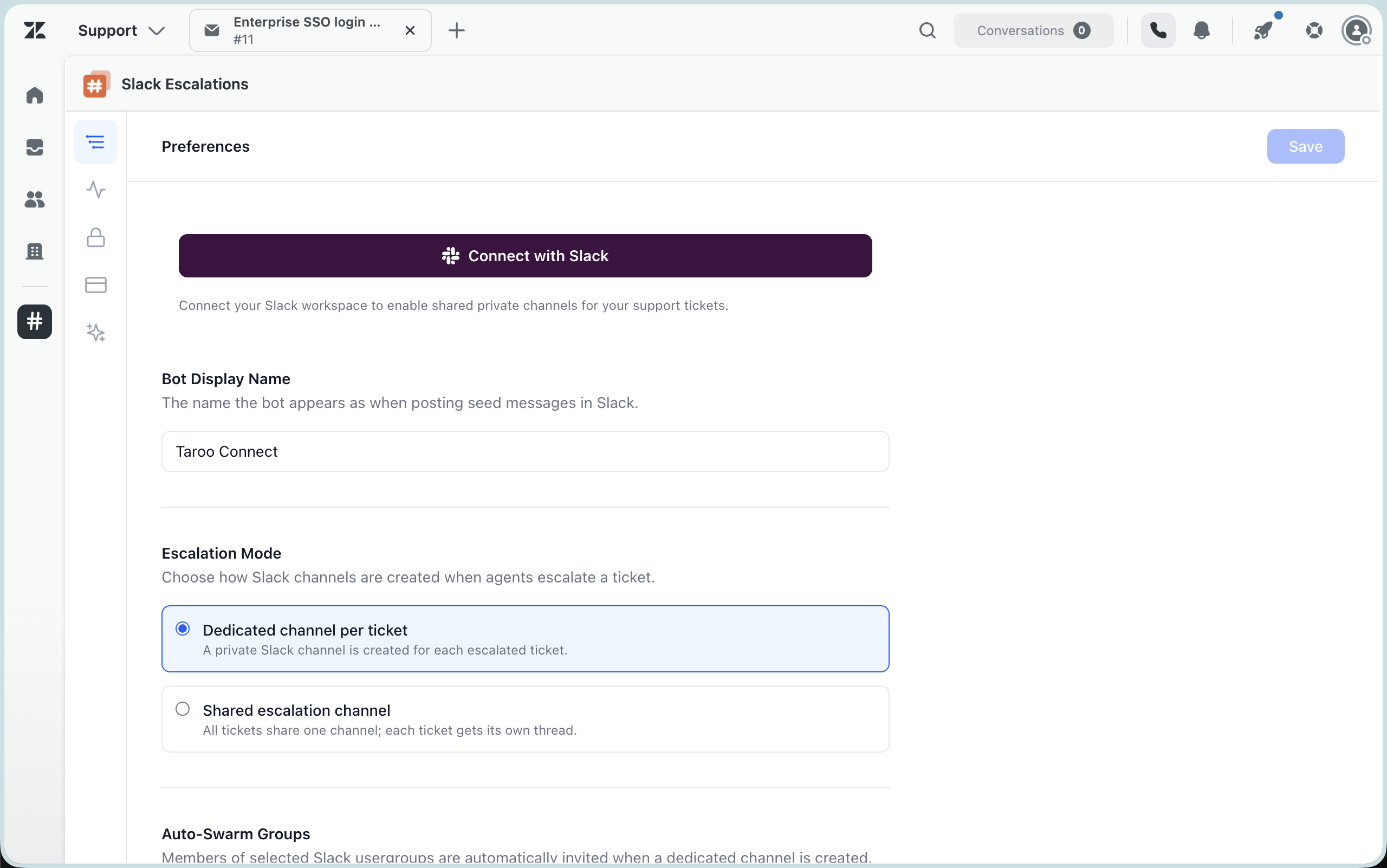
Step 3 — Connect your Slack workspace
Click Connect with Slack. A popup window opens. Sign in to your Slack workspace if prompted, then click Allow to grant the requested permissions.
The popup closes automatically when done. The header shows ✓ Slack connected.
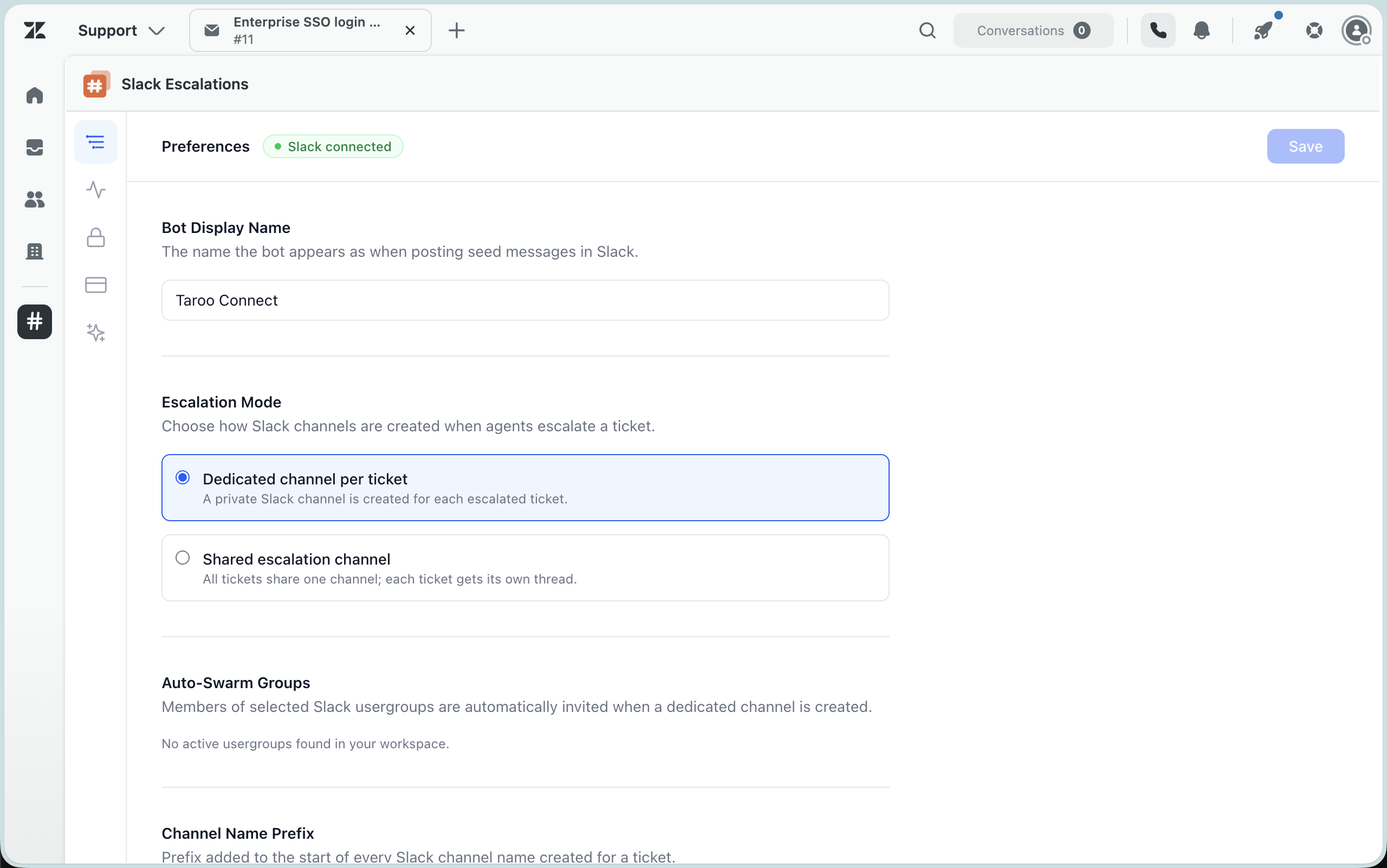
Step 4 — Choose your escalation mode
- Dedicated channel per ticket (recommended) — a private Slack channel is created for each escalated ticket. No additional setup needed.
- Shared escalation channel — all tickets share one Slack channel; each ticket gets its own thread. Enter your channel name or ID — the bot joins automatically for public channels. For private channels, run
/invite @Taroo Connectinside Slack first, then re-enter the name.
Step 5 — Save and escalate your first ticket
Click Save. Open any ticket, find the Slack Escalations sidebar panel, and click Start Escalation to create your first channel.
Optional settings on the Preferences tab:
- Bot Display Name — the name the bot uses in Slack (default: Taroo Connect)
- Channel Name Prefix — prefix for dedicated channel names (default:
tc-, e.g.tc-12345) - Auto-Swarm Groups — Slack usergroups invited automatically to every new channel (requires Slack Pro or higher)
Need help? Contact us at support@taroo.in or visit taroo.in.
Note: If your Slack workspace requires admin approval for new apps, a workspace admin must approve Taroo Connect before Step 3 will complete.
리뷰 남기기
Zendesk 커뮤니티에 나의 경험을 공유해 보세요